Client Guide
How to book a car online at book.alwaysclassiccars.com.au, and how to check or change your booking later. It works on a phone or a computer, and you do not need an account or a password.
Contents
- Making a booking
- Step 1: What you are booking
- Step 2: Who you are
- Step 3: Your cars
- Step 4: Details for the day
- Step 5: Review and sign
- After you book
- If the office booked for you
- Changing your booking later
- Emails you will get
Making a booking
A booking takes five steps. The dots at the top right show which step you are on. Use Back to go to an earlier step; nothing is lost.
If something is missing when you try to move on, a message under the form tells you what to fill in.
Step 1: What you are booking
- Choose Wedding or General (birthdays, school formals, debutante balls and other occasions). Some sites also offer transfers.
- Enter the Date of event.
- The page shows how many cars are free that day. Click Start my booking.
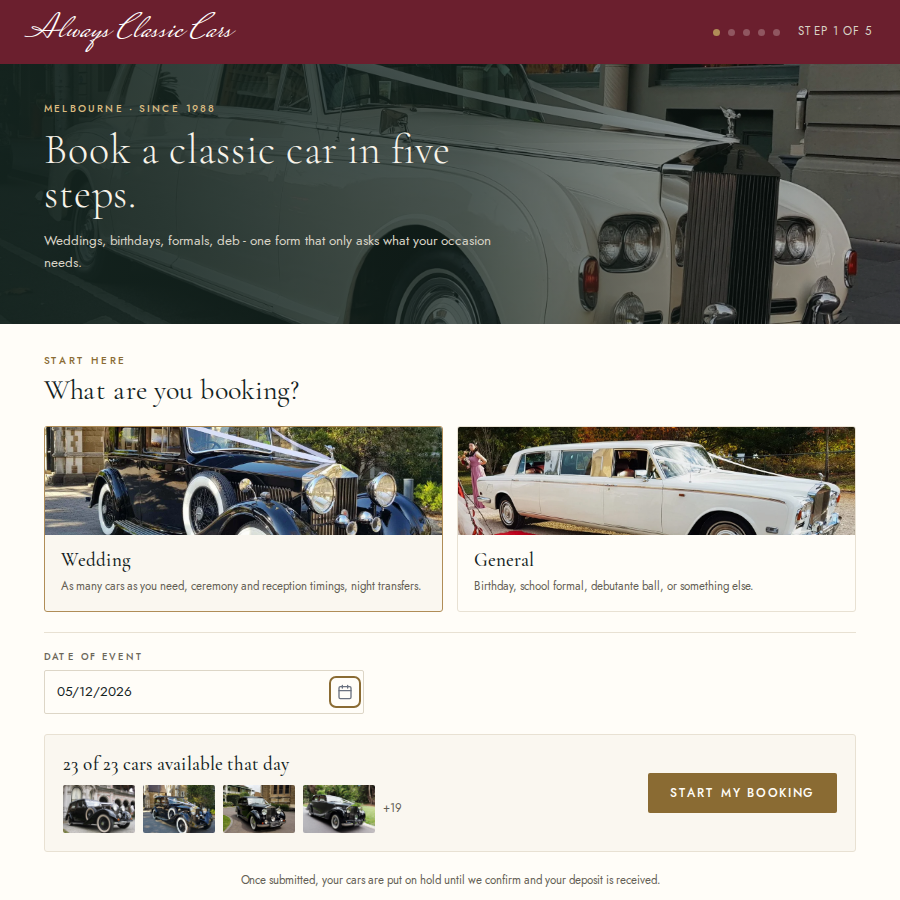
If no cars are free that day, call the office to check other options.
Step 2: Who you are
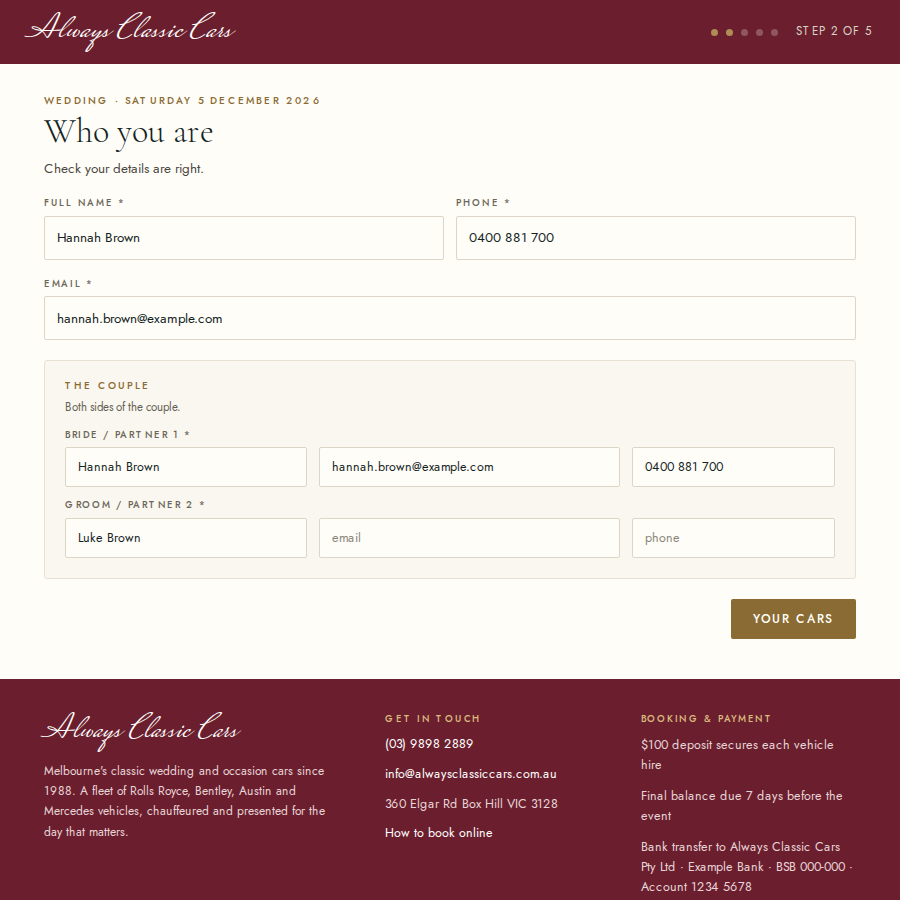
Enter your Full name, Phone and Email. Your booking link is emailed to this address, so check it is right.
For a wedding, choose who you are (Bride / Partner 1, Groom / Partner 2, Wedding planner or Other), then fill in the couple. Your side is filled in for you, so just add your partner's name (their email and phone are optional).
For a general booking, choose the occasion.
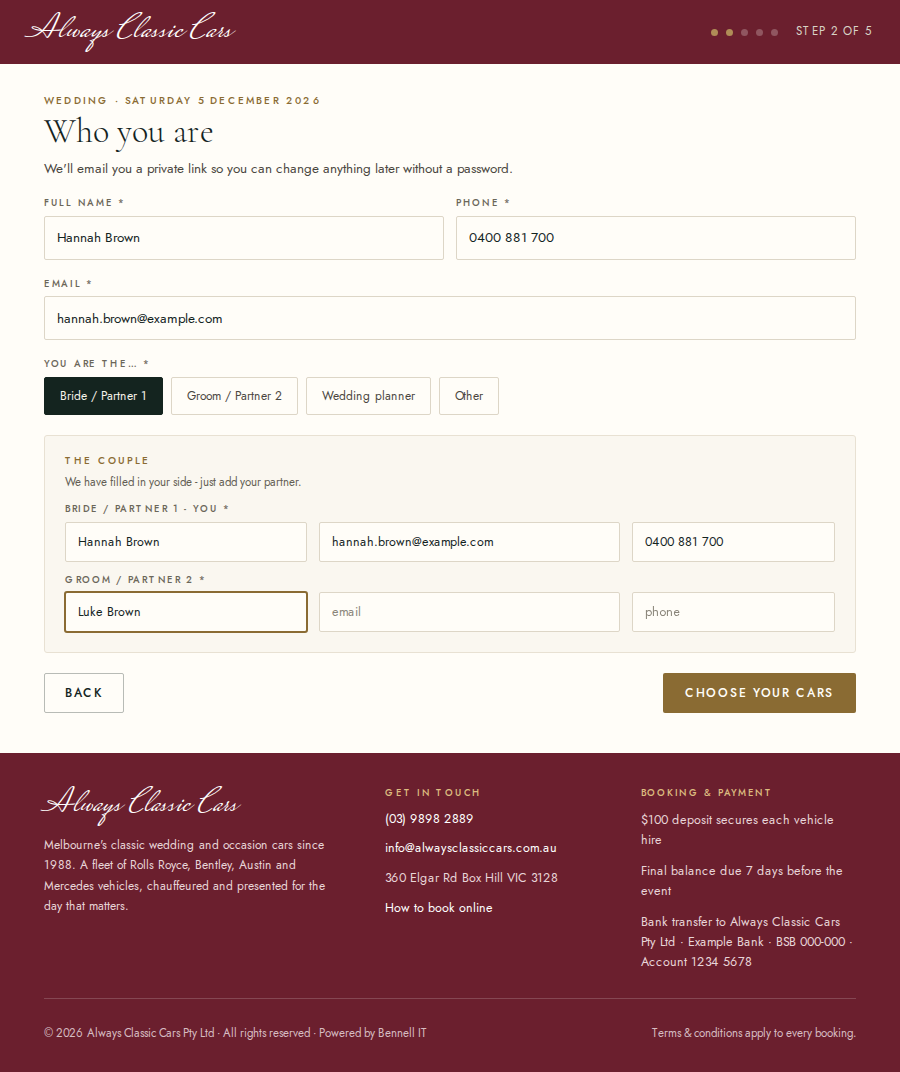
Click Choose your cars.
Step 3: Your cars
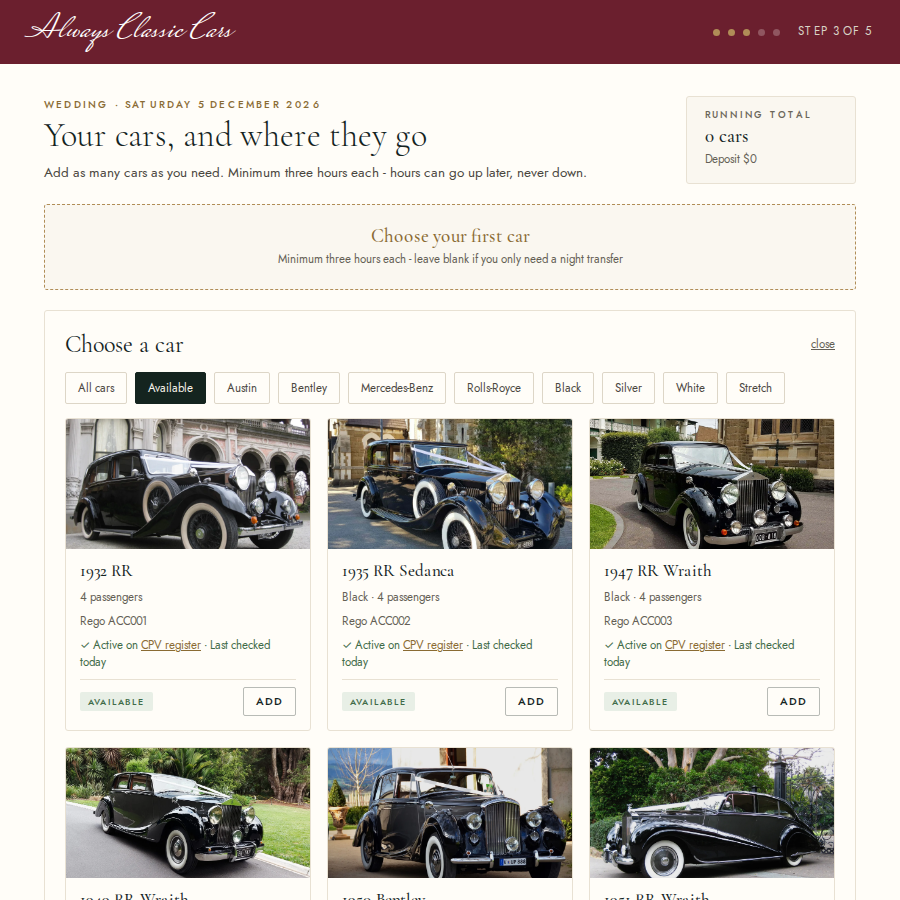
- Click Choose your first car to see the fleet. Filter by make, colour or type, and click Add on the car you want. Cars already taken that day are marked Booked.
- For each car, fill in the Pickup address, Pickup time and Hours (3 hours minimum).
- For a wedding, choose who the car is for (for example the bride or the bridal party).
- If the car does more than one run, add the stops in order: Drop off passengers, Collect passengers, Photo location or Wait here.
- Click Add another car for more cars. Copy journey to another car copies the addresses and stops.
For a wedding, the Shared venues section takes the ceremony address, arrival times, ceremony start and reception venue. You can also add a night transfer at the end of the night, a separate one hour hire.
The Running total at the top right shows the number of cars and the deposit ($100 per car).
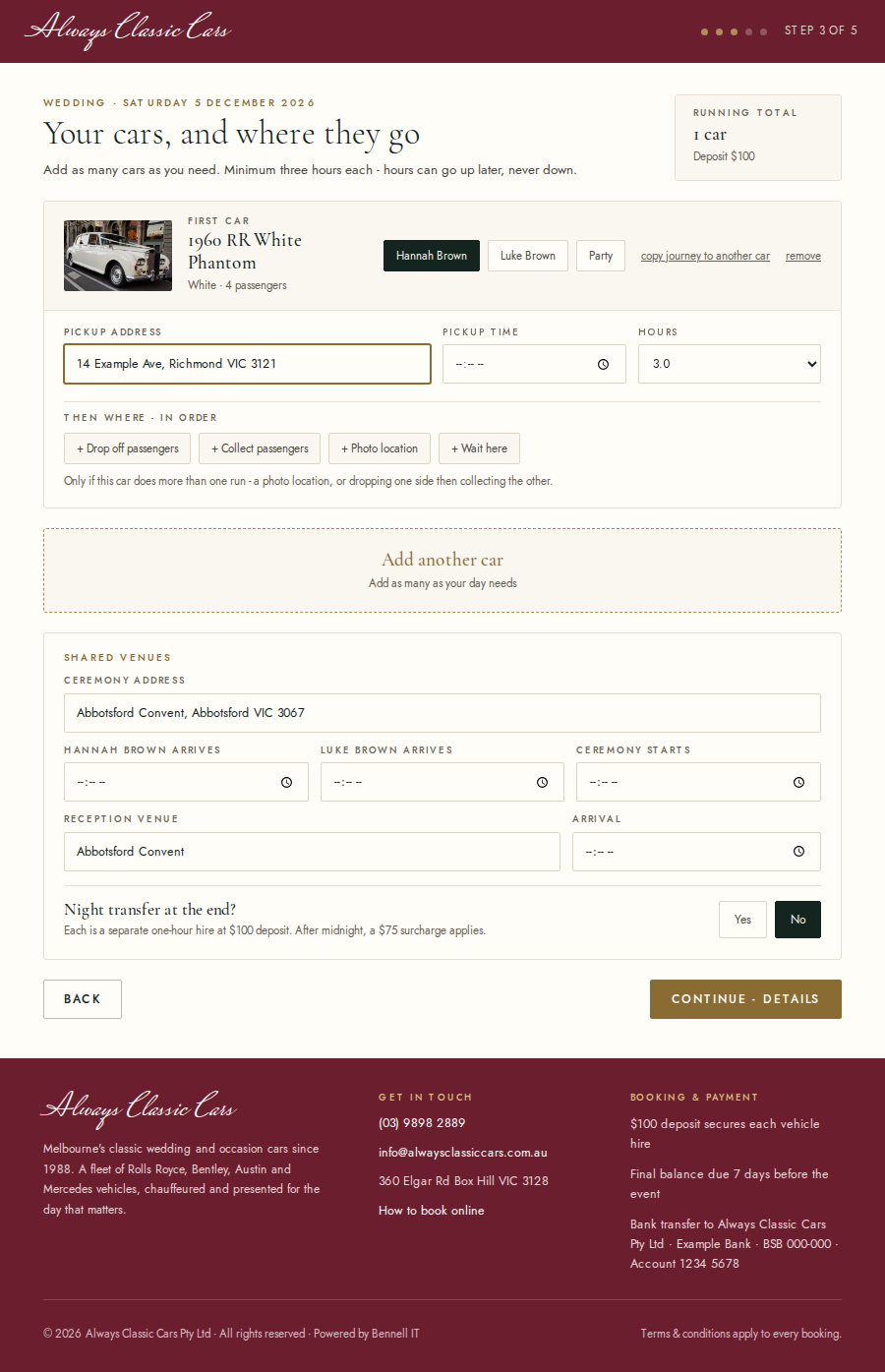
Click Continue - details.
Step 4: Details for the day
- Contact on the day (optional): the name and mobile of the person the chauffeur should call if plans change.
- Photographer and Videographer (weddings, optional).
- Your complimentary bottle: Moscato or non-alcoholic apple cider.
- Special instructions for anything else, such as access, parking or surprises. Addresses and photo stops go on the cars instead.
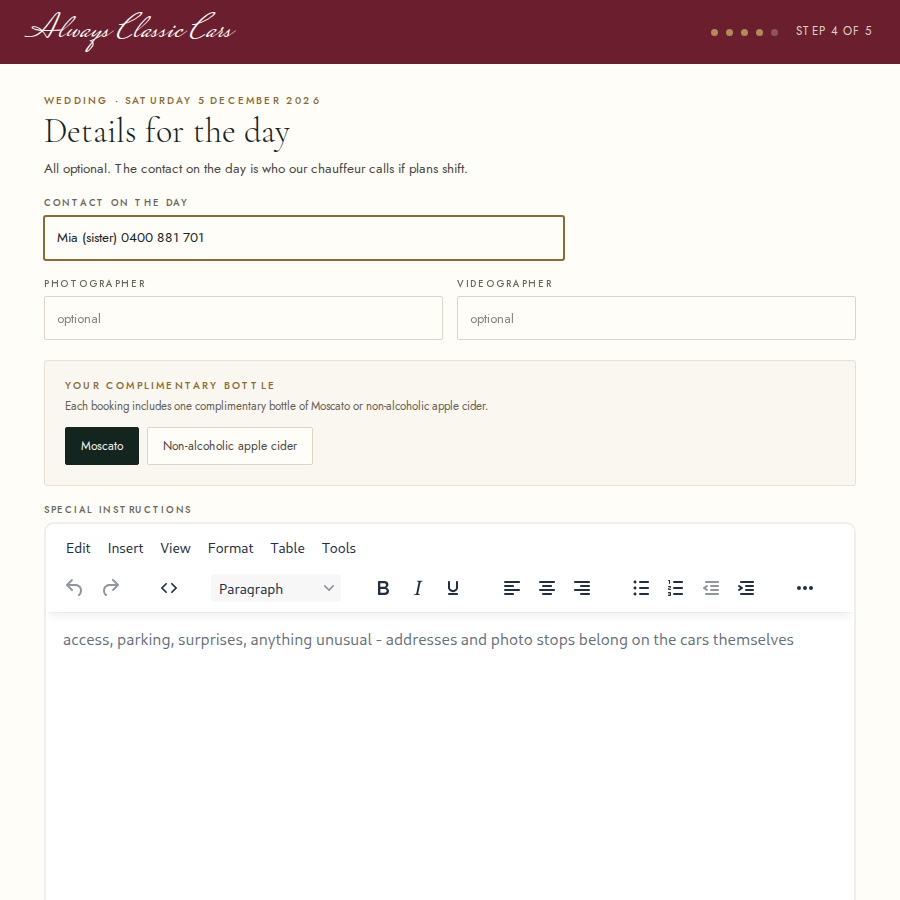
Click Review & sign.
Step 5: Review and sign
- Check the summary of your booking. Click edit next to any part to change it.
- Check the deposit and how to pay the balance.
- Read the Terms & Conditions and tick I have read and agree to the terms and conditions.
- Sign in the Signature box with your finger or mouse (clear starts again), and type your Full name.
- Click Submit booking request.
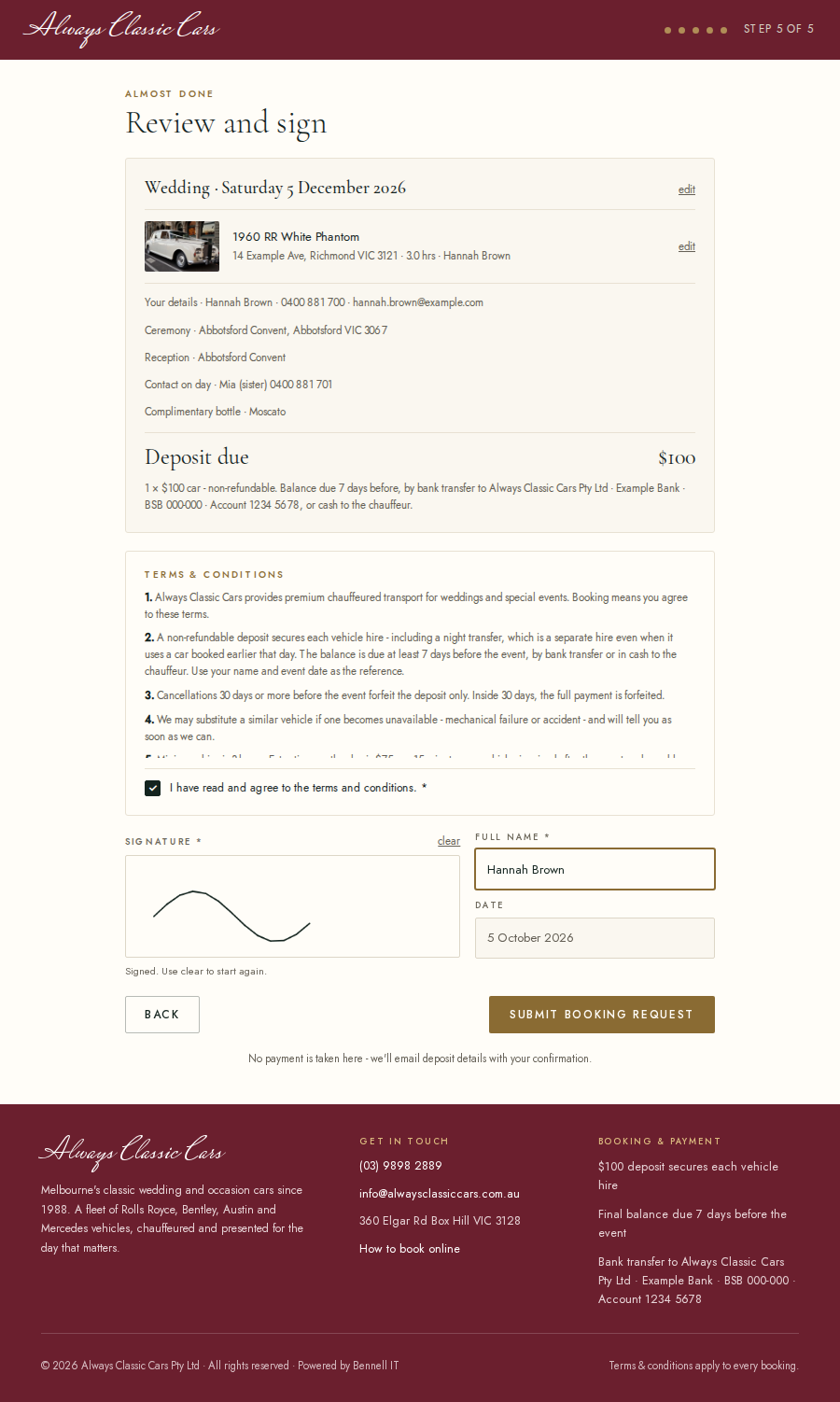
No payment is taken on the website.
After you book
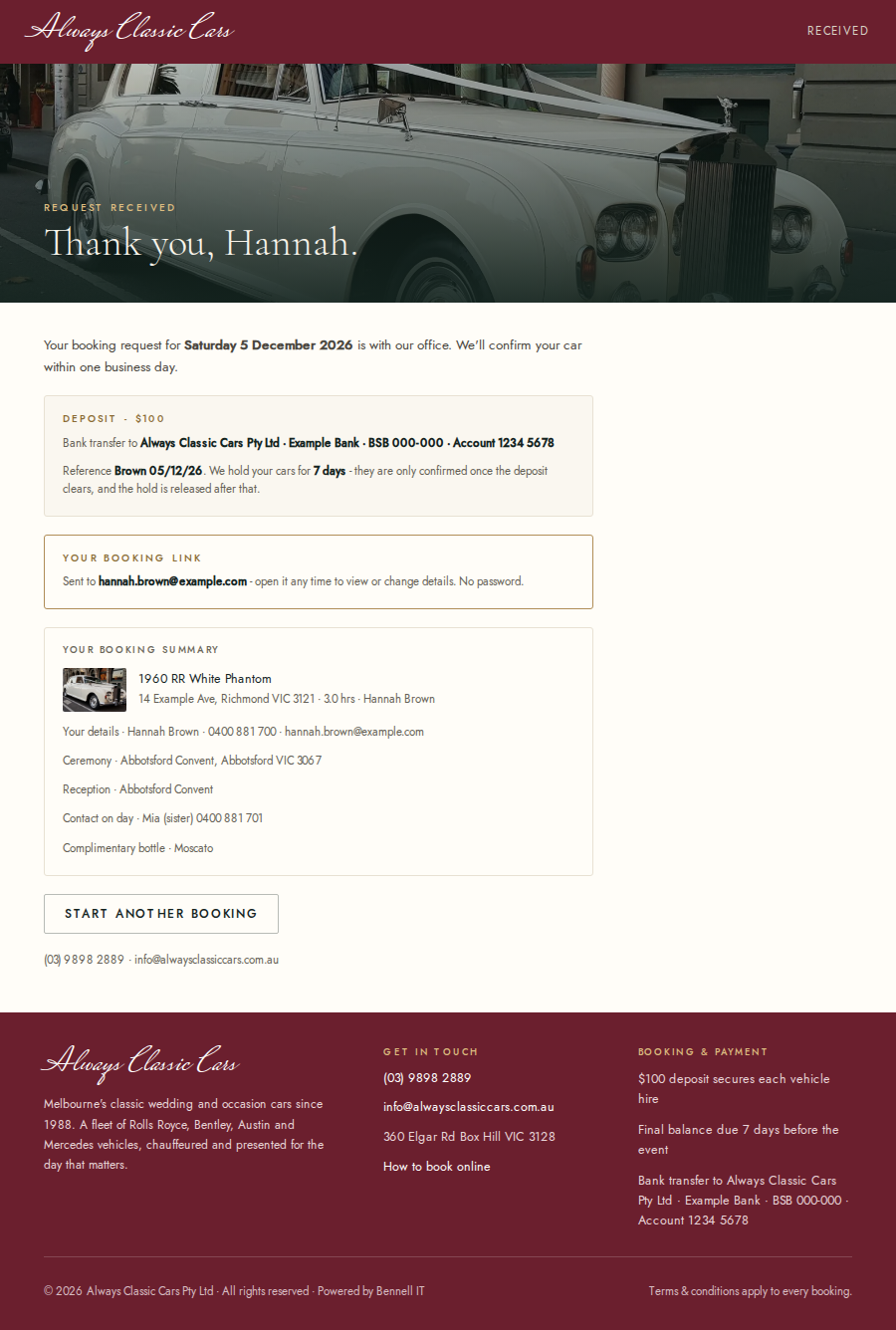
The thank you page shows:
- The deposit and the bank details to pay it, with the reference to use.
- That your cars are held for 7 days. They are confirmed once the deposit clears.
- That your booking link has been emailed to you.
- A summary of your booking.
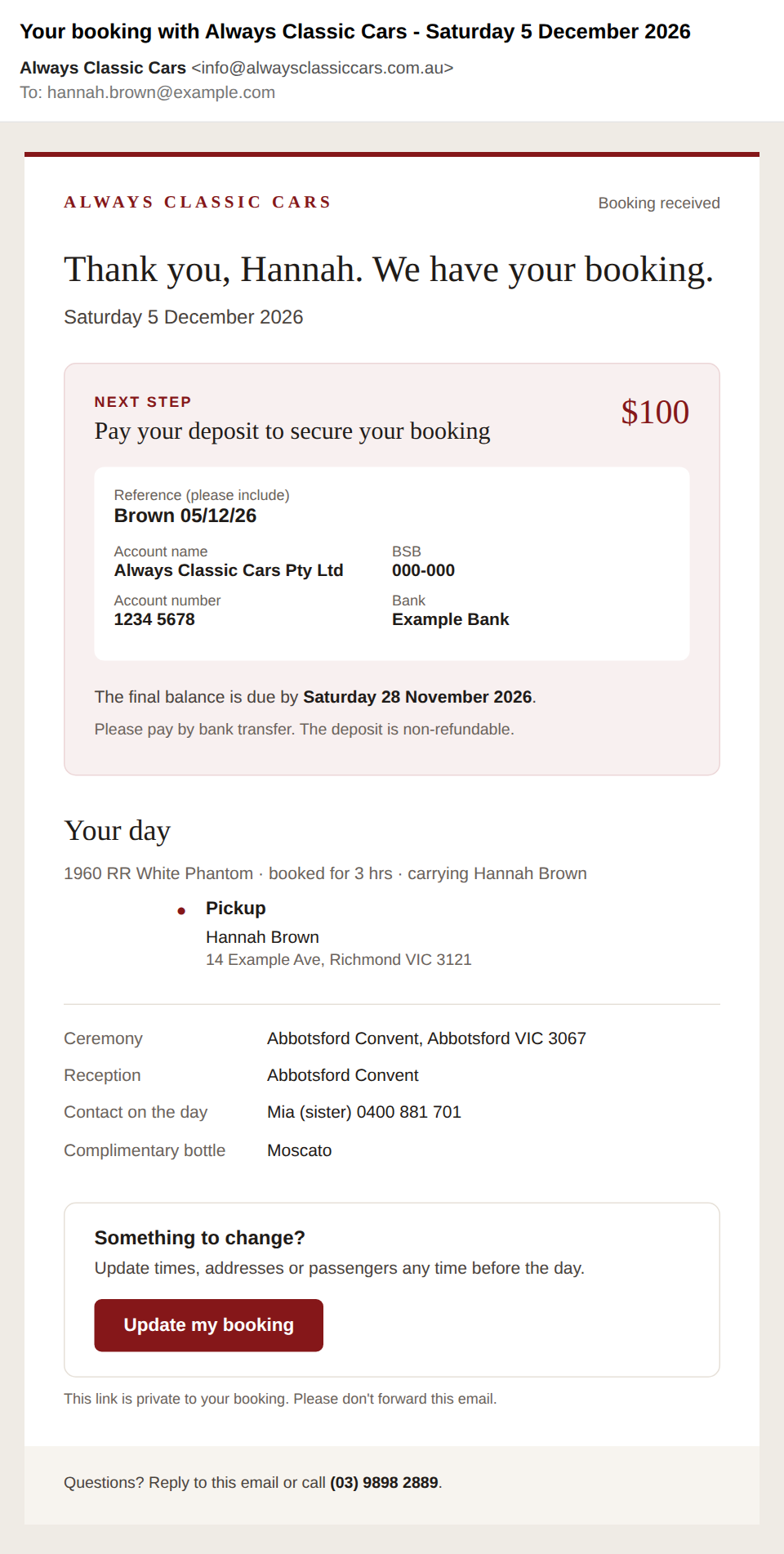
You also get a confirmation email, headed Your booking with Always Classic Cars and your event date. It has the deposit, the bank details and the reference to use, the date the final balance is due, and a summary of your day. The office confirms the final total, which can include travel. Keep it: its Update my booking button is your private link for changing your booking later.
The office confirms your car within one business day. The balance is due 7 days before the event, by bank transfer or in cash to the chauffeur.
If the office booked for you
If you booked by phone or email, the office sends you a link to check, complete and sign your booking form online.
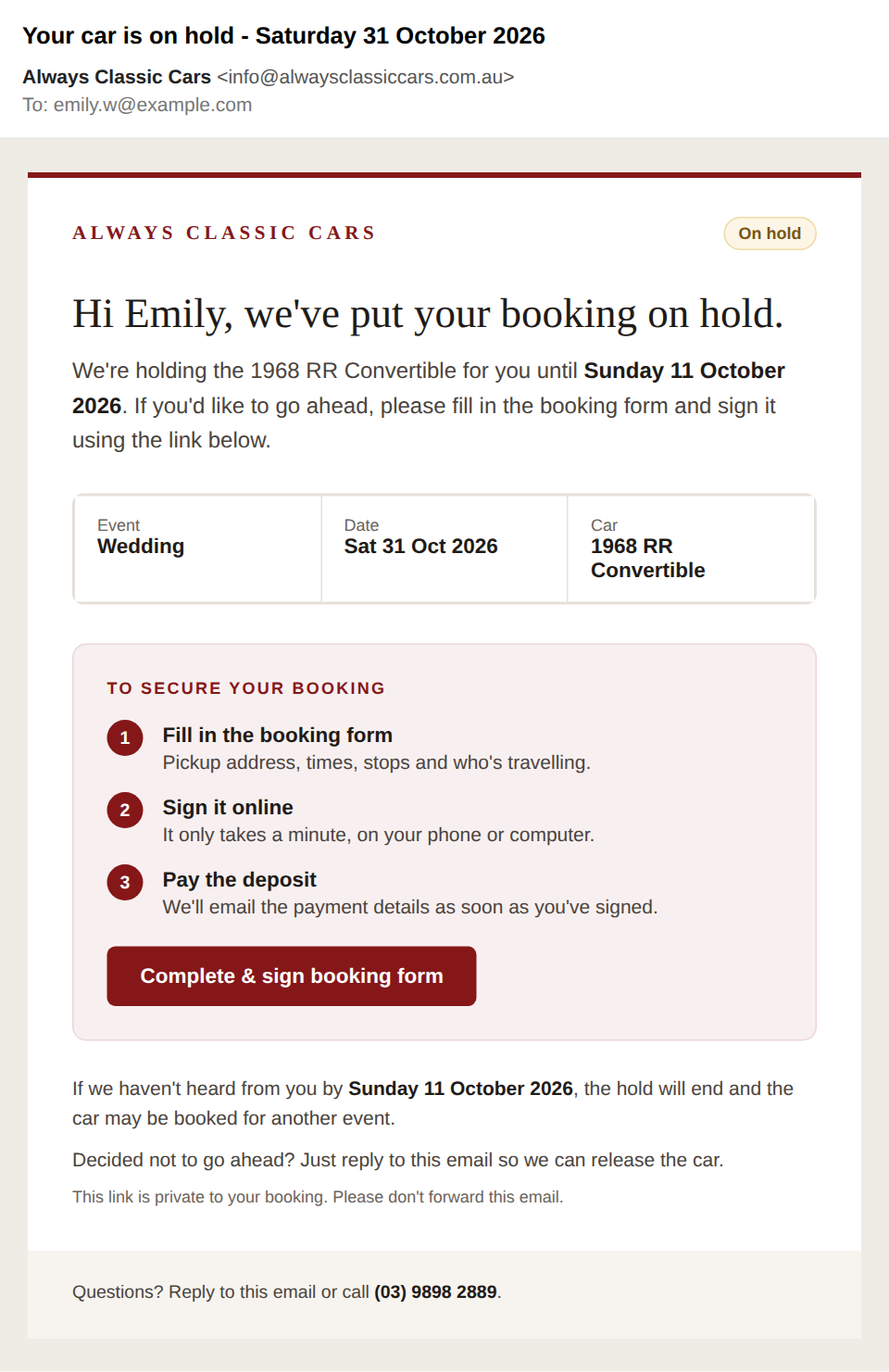
If your car is on hold, you get an email headed Your car is on hold with your event date. It names the car and the date the hold ends.
- Tap Complete & sign booking form.
- Fill in anything missing (pickup addresses, times, stops and who is travelling), and sign on the last step.
- You then get the confirmation email with the deposit and payment details (see After you book).
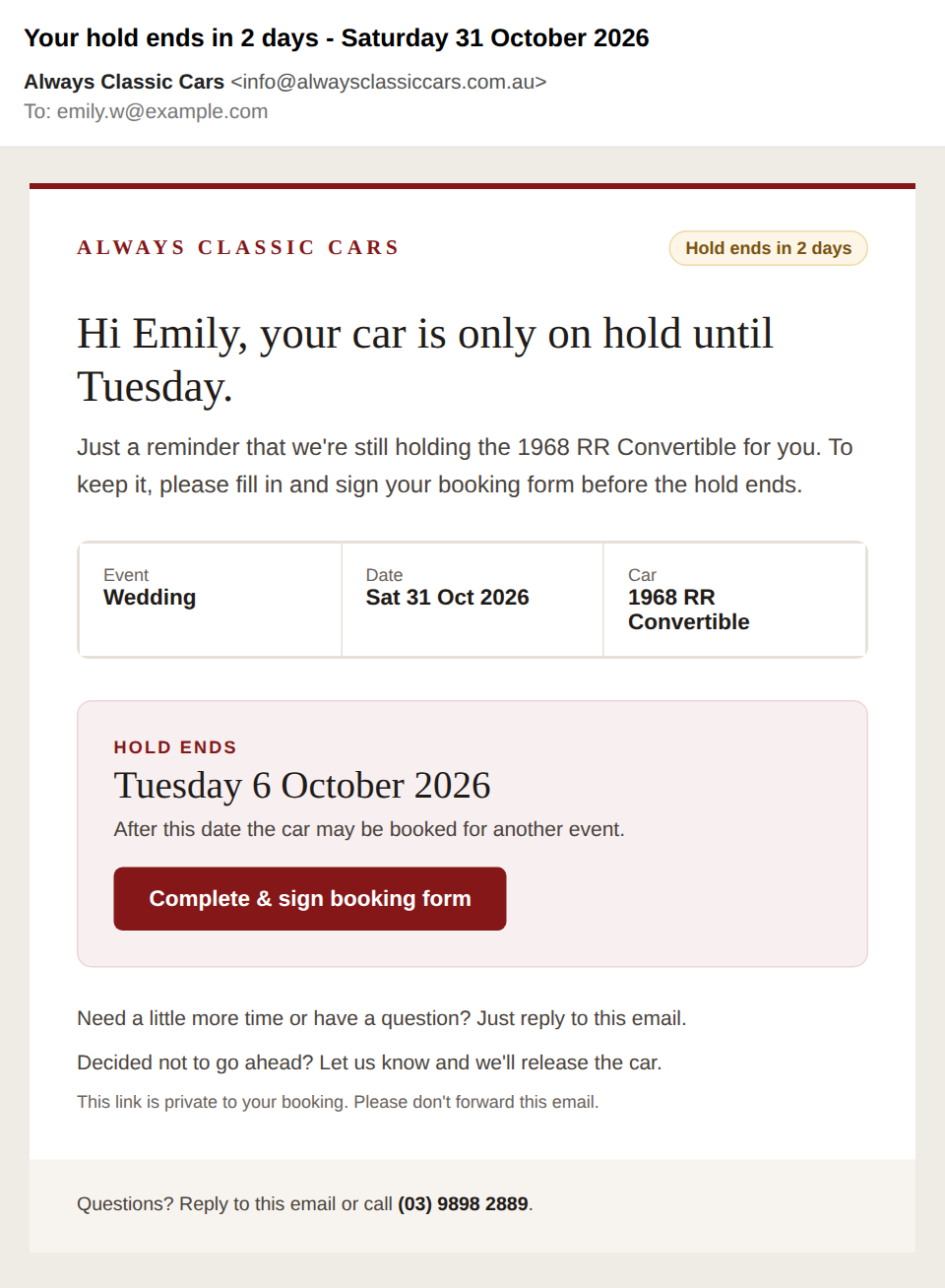
If you have not signed two days before the hold ends, you get a reminder headed Your hold ends in 2 days (or "tomorrow" or "today"). After the hold ends, the car may be booked for another event. If you decide not to go ahead, just reply to the email so the office can release the car.
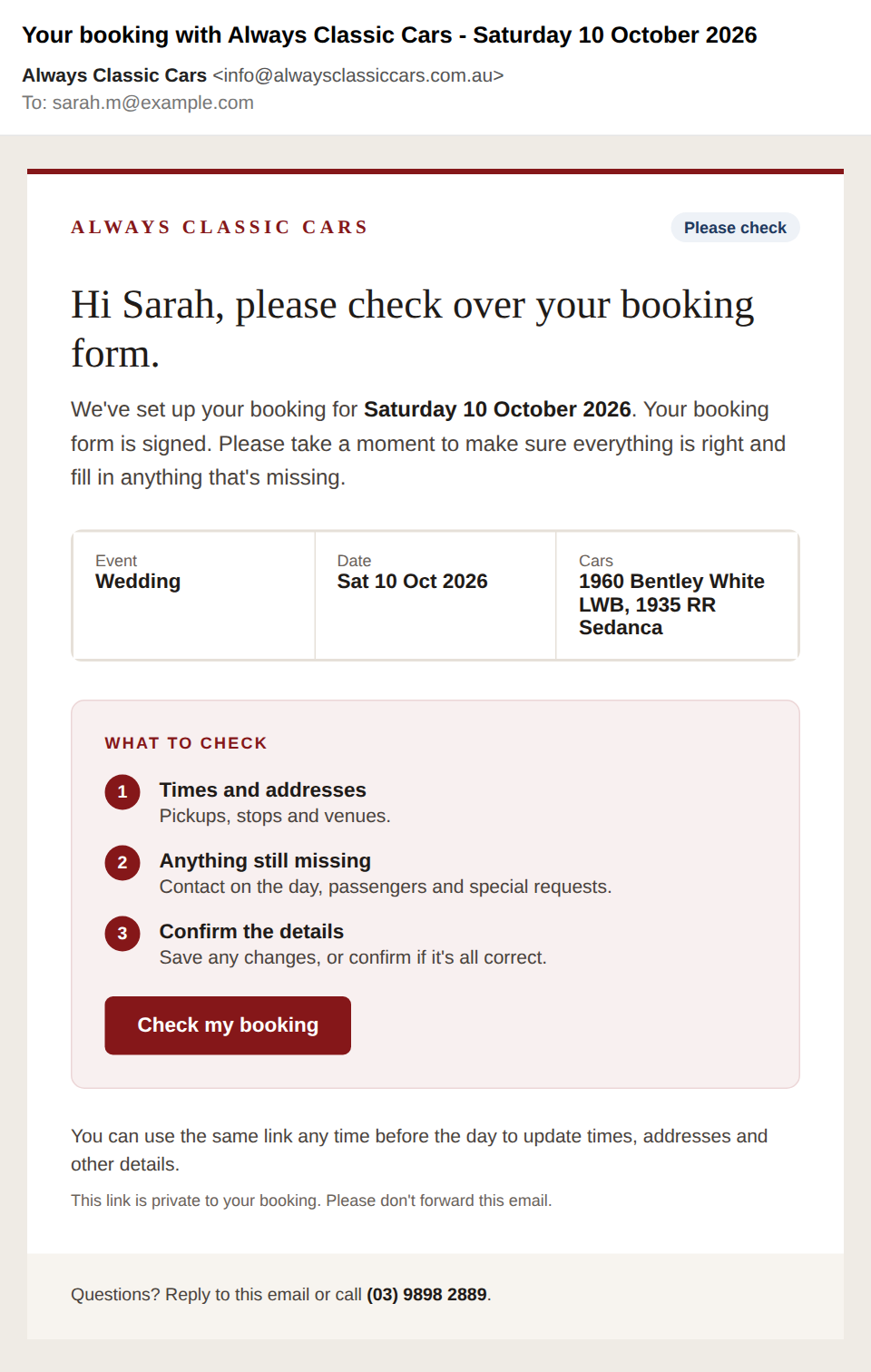
If your booking is already confirmed, you get an email headed Your booking with Always Classic Cars asking you to check over your booking form and fill in anything missing. Tap Check my booking to open it, then save any changes.
The link in these emails is private to your booking, so please do not forward them.
Changing your booking later
Open the link in your confirmation email (or the link the office sent you). It opens your booking with the same steps, already filled in.
- You can change your contact details, pickup times, addresses, stops and the details for the day, and sign if you have not signed yet. Once you have signed, your signature stays as it is.
- You can attach documents such as a run sheet on the Details step: PDFs or photos, up to 10 MB each and 10 per booking. Save Word or Excel documents as a PDF first.
- The date cannot be changed online. Call the office.
- While your booking is on hold, you can change the occasion of a general booking, add or remove cars and change hours (down to the 3 hour minimum). After that, cars are locked and hours can go up but not down.
- At the end, Review your changes shows your booking, then click Save changes. The office is told what changed.
The link works until the day before your booking. It stops working on the day itself, or if the office sends you a new one. If it does not work, call or email the office.
Emails you will get
All emails come from Always Classic Cars. To ask about one, reply to it or call the office.
| When | What to do | |
|---|---|---|
| Your booking with Always Classic Cars, with your event date | You book online, or sign a booking the office put on hold | Pay the deposit using the reference in the email. Keep the email for its Update my booking link |
| Your car is on hold, with your event date | The office holds a car for you | Tap Complete & sign booking form before the hold ends |
| Your hold ends in 2 days (or tomorrow, or today) | Two days before a hold ends, if you have not signed | Complete and sign, or reply if you are not going ahead |
| Your booking with Always Classic Cars, asking you to check it over | The office sends you the link to a confirmed booking | Check your booking form and fill in anything missing |